 vintex.app







Updating the extension
Three ways to force the extension to update, and how to check which version you are running.
Why force an update?
The browser updates extensions on its own, but hours late. If the dashboard shows "Update required" or greys out a feature, that's the lag — and it takes a minute to catch up.
The dashboard tells you
When the installed extension is behind the latest published version, a window opens as the dashboard loads.
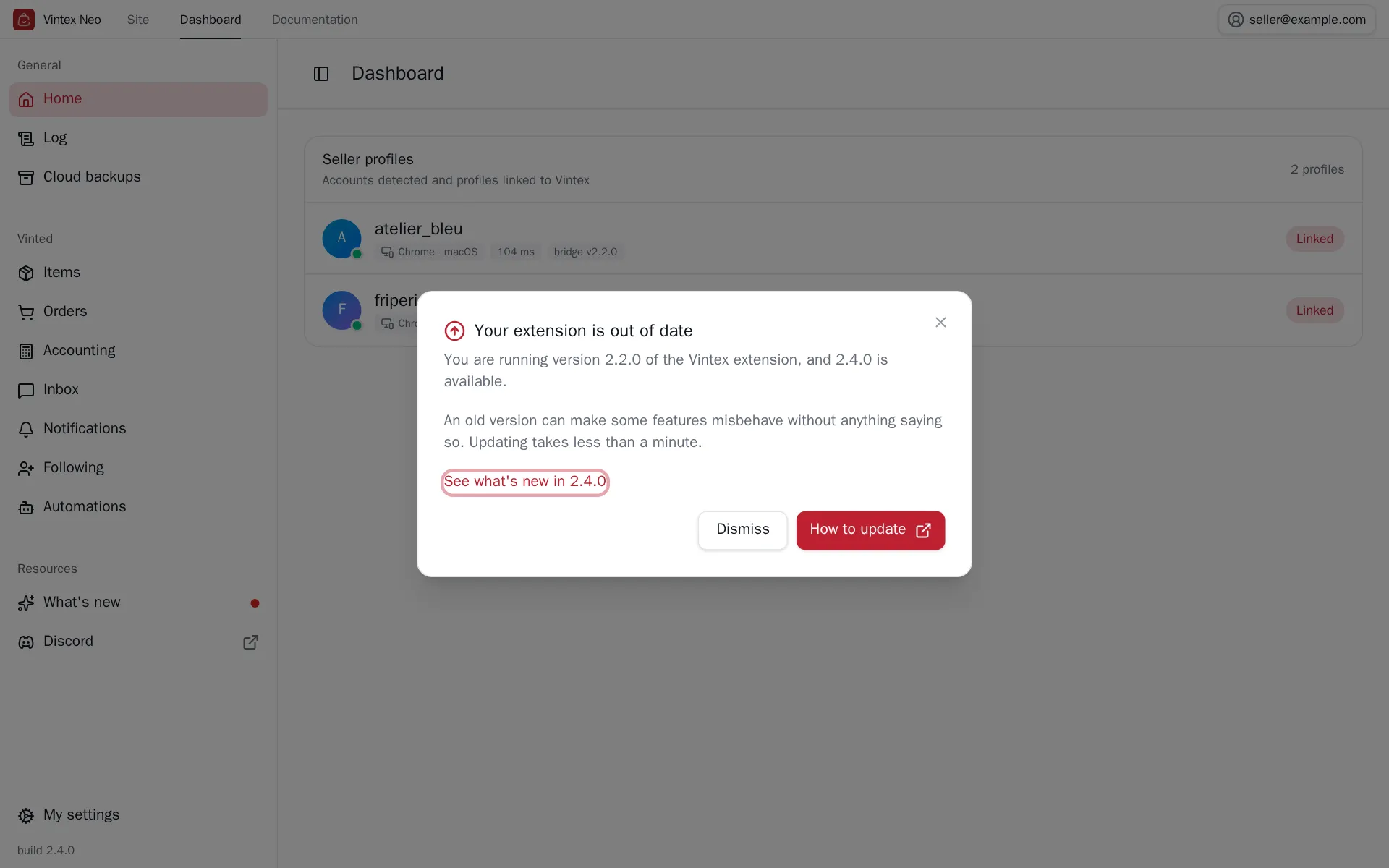
It is informative: nothing is blocked, and the dashboard keeps working with the version you have. But an old version can make features misbehave without saying so — an automation, for instance, freezes its settings until both sides agree on the same version.
Dismiss closes the window for now. It comes back the next time you load the dashboard, until the update is done.
Checking your version
The number is shown right at the bottom of the dashboard sidebar, and the installed version carries the Installed badge in What's new.
Forcing the update
Close the browser completely and reopen it. On start it checks for updates and installs the latest version. Simplest, and enough most of the time.
Reinstalling loses you nothing: your Vintex session, linked profiles, rules and automation settings live on the Vintex side, not in the extension. You will only need to sign in again from the panel, and grant the permissions again.
After updating
Reload the dashboard page and your platform tabs. An "Update required" banner that persists after a reload often means the opposite: the page is behind the extension — a forced reload sets it straight.
If it doesn't work
| Symptom | Likely cause | Fix |
|---|---|---|
| The Update button changes nothing | You already have the latest published version | Compare with What's new |
| The extension vanishes from the list | Disabled by the browser | Re-enable it in chrome://extensions |
| No panel after updating | Permissions need granting again | See Troubleshooting |
| "Your extension is newer than this page" | The dashboard is cached | Reload the page |
Try it on your own shop
Vintex runs in your browser, on your own seller account.