 vintex.app







Edit a backup's photos
Reorder, remove or add photos in a backup, before restoring it.
Why edit before restoring?
The main photo decides your click-through rate. A backup is exactly the moment where changing it costs nothing: reorder, drop a blurry shot, add one taken since — and the restored listing starts with a better shop window.
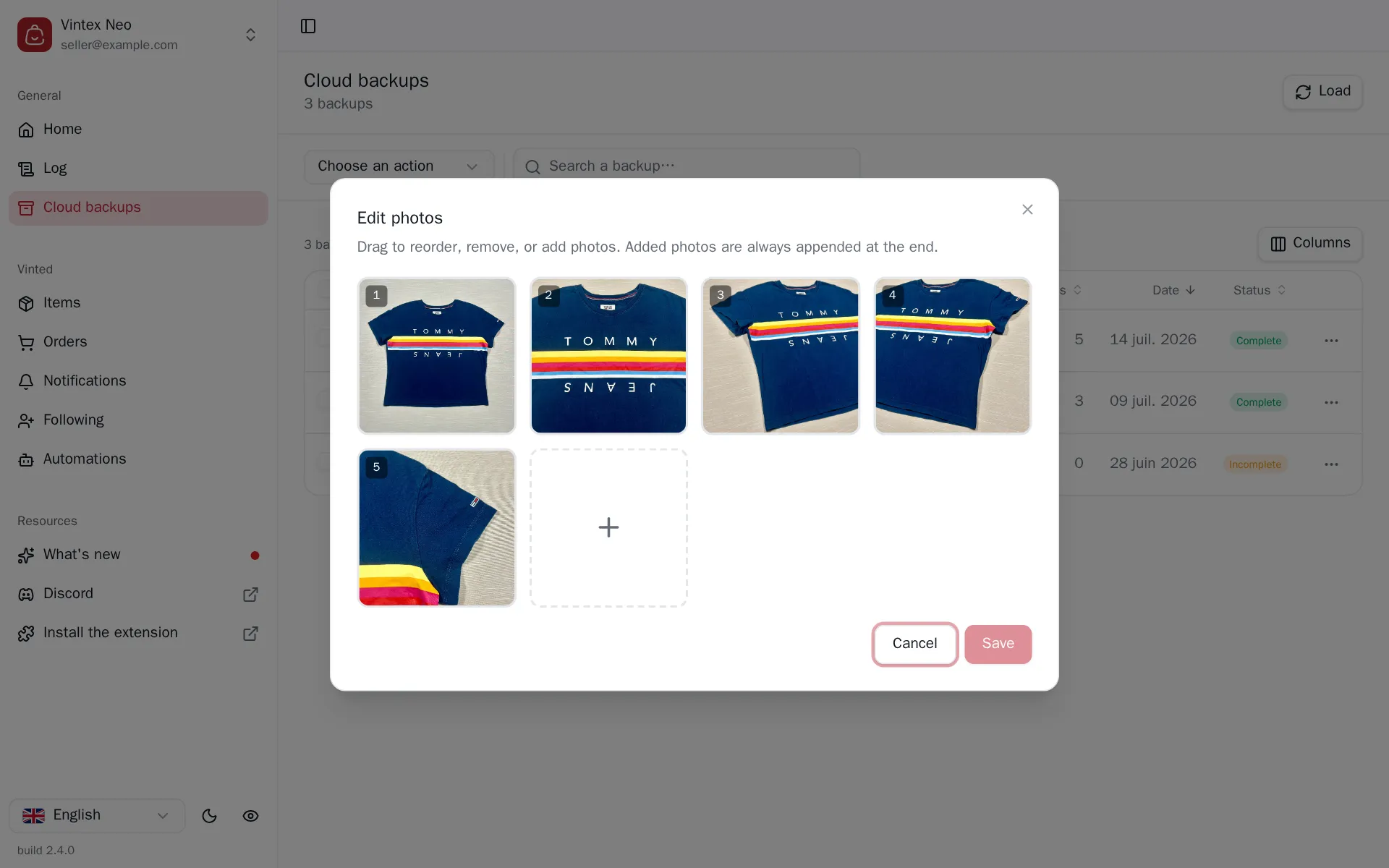
How to do it
From the Backups table, a row's menu → Edit photos. Drag to reorder, remove, or add files: added photos always go at the end, and the first one becomes the main photo of the restored draft. Saving goes through the task centre, like every other action.
What it changes
Removing a photo deletes it from our storage
The photo isn't just unticked: it is erased. If the item no longer exists on the platform, there is no other copy.
Order matters: the first photo becomes the main photo of the restored draft.
If it doesn't work
| Symptom | Likely cause | Fix |
|---|---|---|
| A photo doesn't show in the editor | The backup is Incomplete | Nothing to recover; take a fresh backup if the listing is online |
| Adding a photo fails | File too large or format refused | Retry with a lighter JPEG |
| Saving fails | Network drop | Retry; the previous order is kept |
Try it on your own shop
Vintex runs in your browser, on your own seller account.