 vintex.app







Duplicate items
Create a copy of a listing without touching the original — to sell an item in several units.
Why duplicate?
You're selling the same item in several units — three identical t-shirts, two pairs in the same size. The platform has no notion of stock: one listing = one unit. Duplicating creates the second without touching the first.
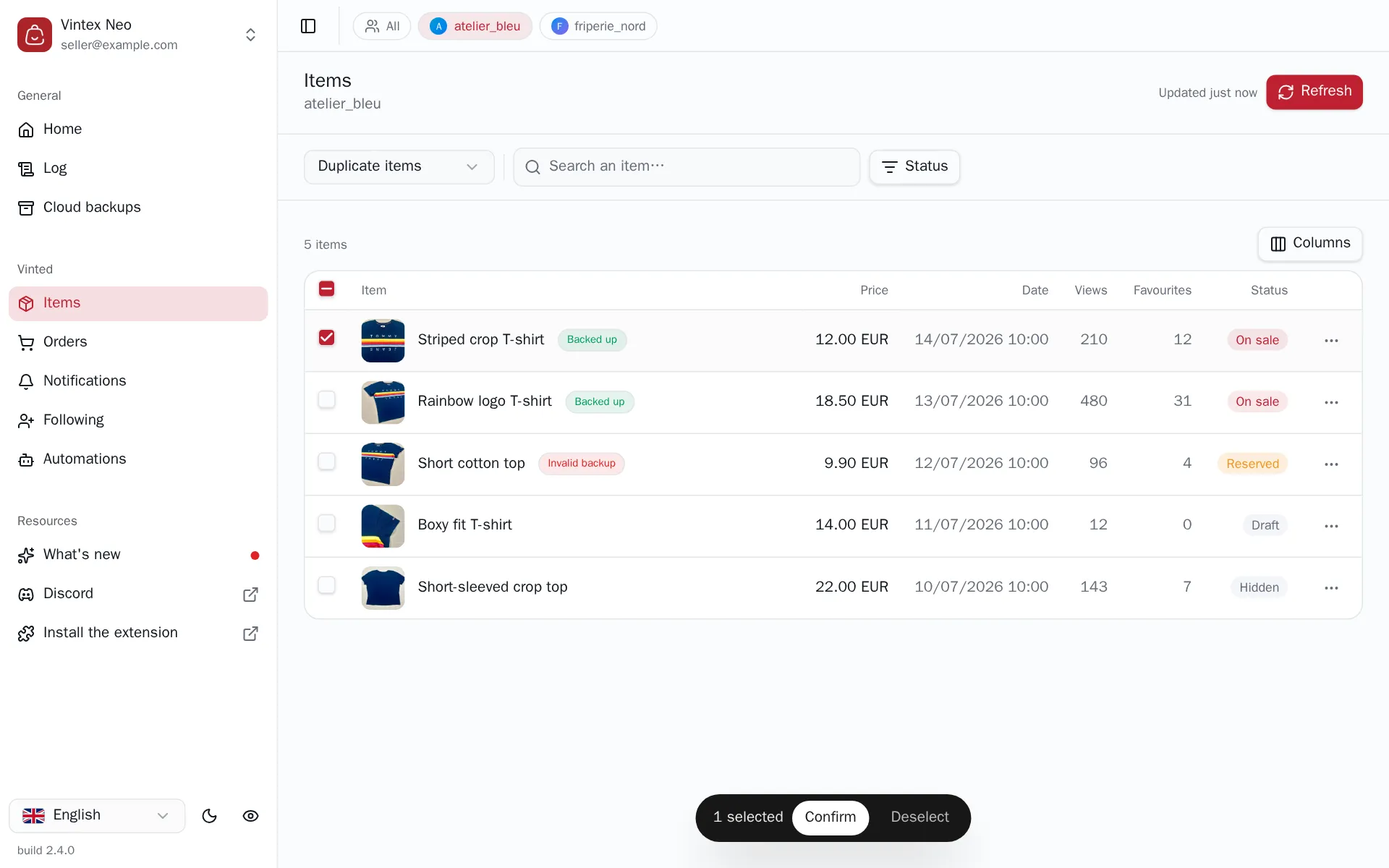
How to do it
In the Items table, pick Duplicate items above the table, tick, Confirm. There is no dialog: the task starts straight away.
Each copy is created as a draft, never published — you pick the moment, with Publish drafts. That is also where you adjust the title or the photos before going live: duplicating offers no options of its own, it takes the listing as it stands.
What it changes on the platform
Two identical listings can be read as a duplicate
The platform dislikes strictly identical listings. The copy lands as a draft, so adjust the title or one photo before publishing it.
The copy starts at zero favourites, zero views.
What happens while it runs
Vintex leaves a few seconds between each copy, and the gap varies. Duplicating is a heavy operation — it reads the photos, re-uploads them, then creates the listing — so it is more visible than a plain write: the wait is longer than on other tasks.
If it doesn't work
| Symptom | Likely cause | Fix |
|---|---|---|
| The copy fails as "restricted" | The platform refuses creation in that category | Check the original listing on the platform |
| The copy doesn't show in the wardrobe | It is a draft — use the Draft filter | Publish drafts |
| "Photo upload failed" | A photo could not be read back or re-uploaded | Retry; Vintex created no truncated copy |
| A captcha appears | The platform is asking for a human check | See Captcha & checks |
Try it on your own shop
Vintex runs in your browser, on your own seller account.